Our Crytocurrency Token: Forage
Coming Soon
Forage is not available on the exchanges yet. Check back again soon.Forage is Peace Valley Forager’s cryptocurrency token. As Nathaniel and I become a more prominent wild food provider to the BC area, we foresee that our own hands won’t be able to keep up with the demand. In time, we will have to source our product from other mushroom pickers, and, these pickers will have the option to be paid in our token Forage. Those days are a ways away yet. But, I have actually taken the time to create said token and it is just waiting to be placed on the cryptocurrency markets. We will also accept Forage for payment in our online shop.
100,000,000 Forage tokens have been minted. You can view our contract on the Binance Smart Chain here.
If you have any questions please reach out to us.
Buying Forage
Instructions for Canadian users
Note: Ontario residents can no longer use Binance as a service beginning December 31, 2021.
-
Send BNB to Trust Wallet
After you’ve converted bitcoin to BNB on Binance, send the BNB to your TrustWallet and then convert the BNB to smart chain.
Once completed, purchase Forage on the PancakeSwap dapp.

Install the following apps
You may have to provide Identification when creating accounts with the above mentioned apps and websites. But, to purchase Forage, and any other cryptocurrency, these apps and websites are the most recommended way to onboard your investment money.
Ensure you’re downloading the official apps. There are lots of scams in the cryptocurrency world.

Transfer funds to Shakepay
To find the correct address to e transfer, open the Shakepay app and then click Add funds. Choose Interac e-Transfer as the funding option.
From your online banking, add Shakepay as an e-transfer contact. As of writing, the email address we normally use to send Shakepay money is funding @ etransfers.shakepay.com. Sometimes, e transfers to Shakepay can take a few hours, however, normally they are within only 1 - 2 minutes.
Now that your funds are in Shakepay, click on the arrows at the bottom of the home page then click Buy & Sell (Buy and sell at current prices).
Click MAX which will tell Shakepay that you want to use all the funds you e transferred to buy Bitcoin. If prompted, confirm the transaction from your email.
Congratulations! You just purchased Bitcoin. Now we need to send that Bitcoin to Binance.
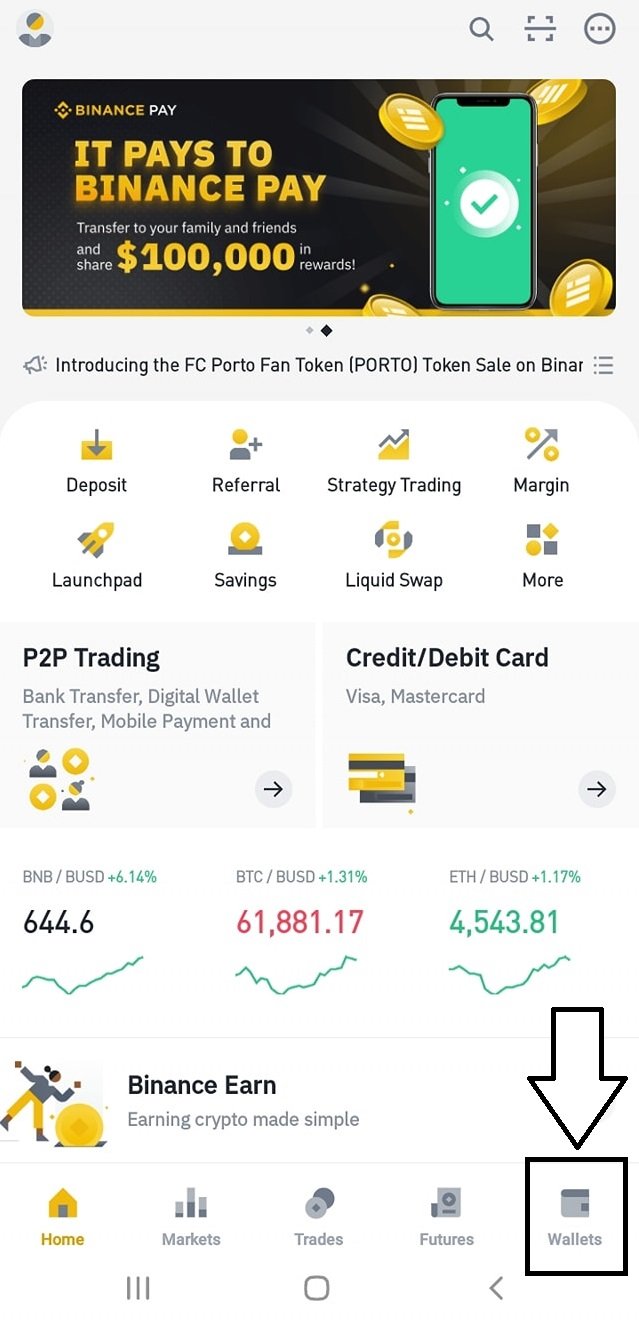
Click Deposit
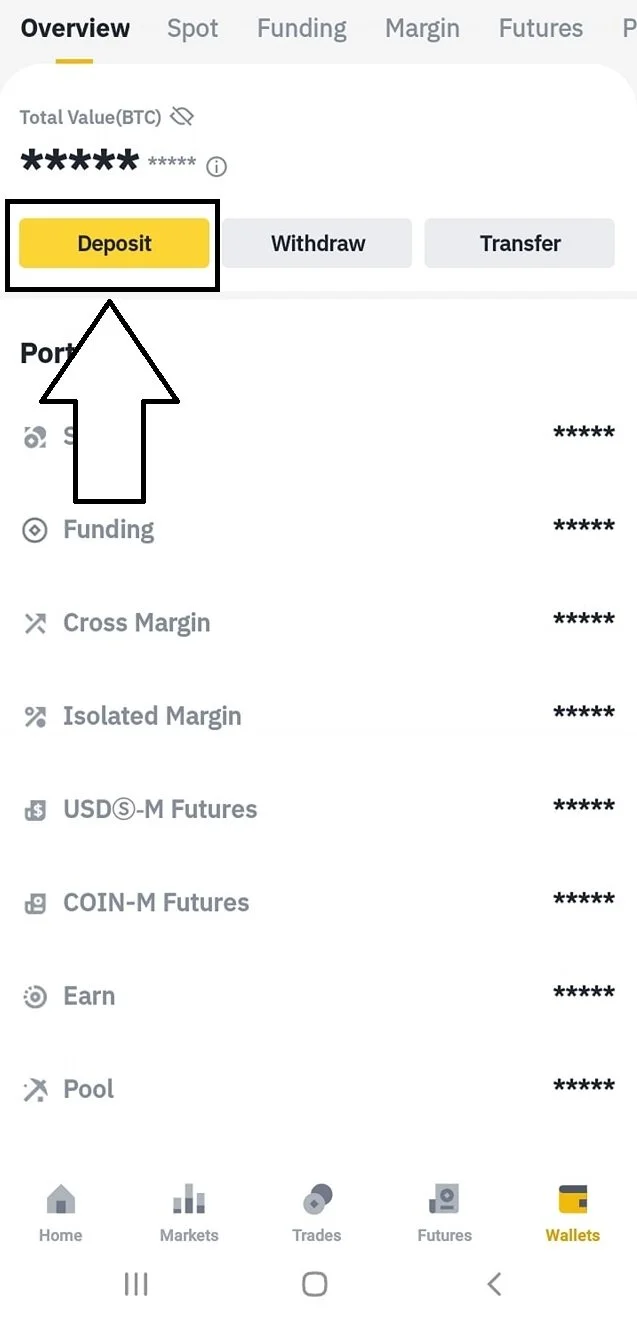
Next
-
Search for BTC
In the coin list, search for BTC (aka Bitcoin)
-
Choose Network
When prompted for network, choose Bitcoin
-
Wallet Address
Copy your Wallet Address. You’ll need it for the next steps
Copy your BTC Wallet Address
Copy your wallet address (very carefully). We are going to tell Shakepay to send our Bitcoin to this address, so if you incorrectly copy this address, you will permanently lose all of your Bitcoin.
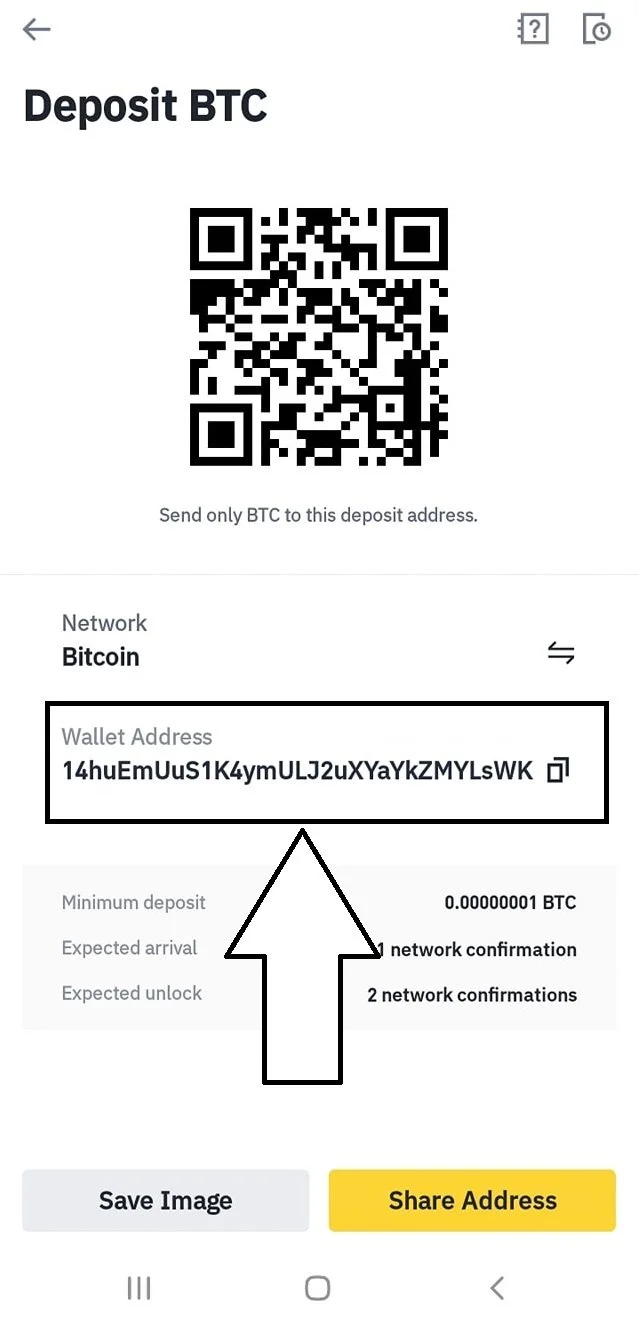
Your balance in Binance displays USD by default, so it will appear you have less money due to CAD - USD conversion rate.
-

Open Shakepay
Click the wallet icon on the bottom left of the Shakepay app and then click Send.
-
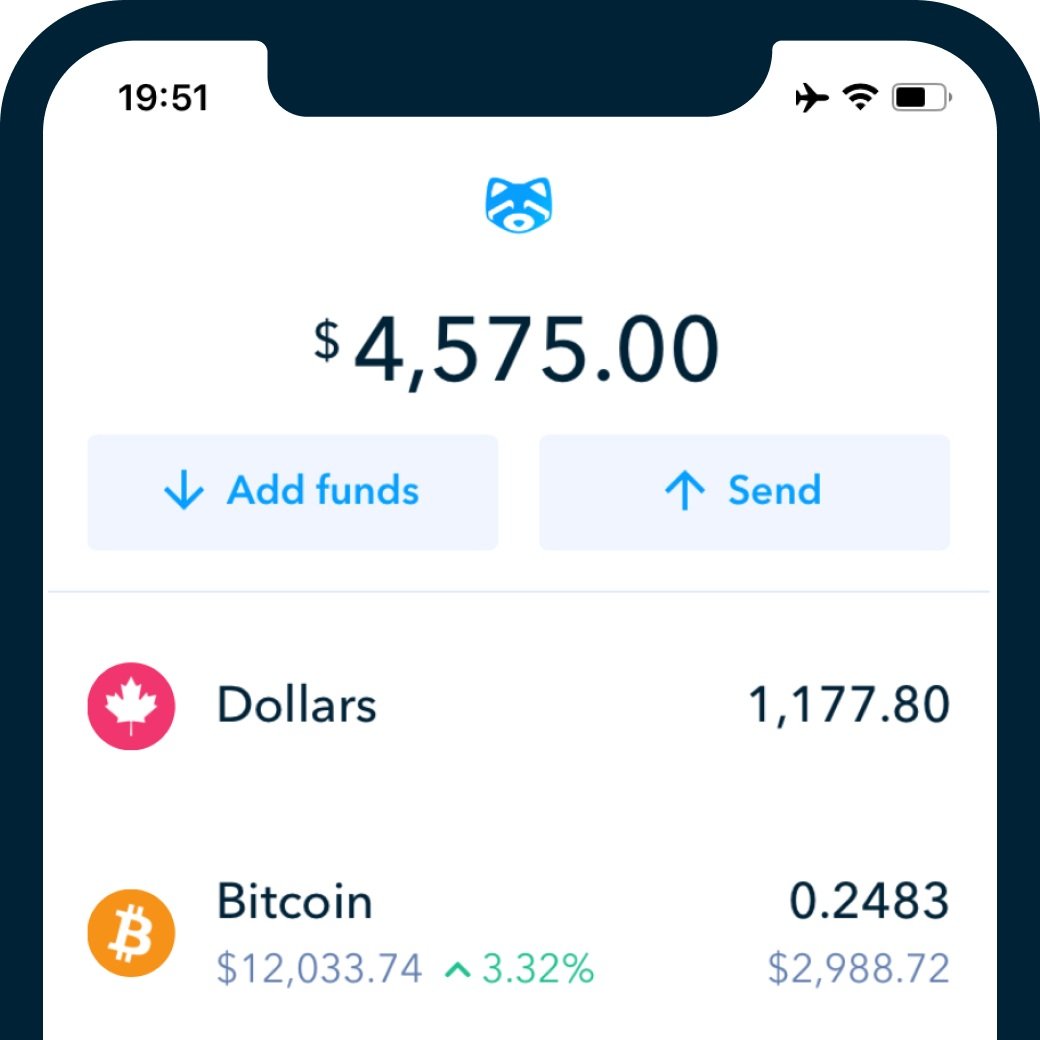
Click Send
Enter or paste the Bitcoin wallet address we just retrieved from your Binance account. Click MAX then click send. You may have to confirm this action in your email before the transaction processes.
-
Wait For It
Keep checking your Biance wallet for the Bitcoin to come through. It could take up to 1 or 2 hours depending on network activity.

Wait…
Bitcoin transaction normally take approximately 10 minutes. In rare cases, it may take several hours.
Wait 20 minutes
In most cases, your bitcoin from Shakepay will arrive in your Binance wallet within 20 minutes. To check, simply open the Binance app and click the wallet icon on the bottom right of the app. Drag the screen down to refresh.
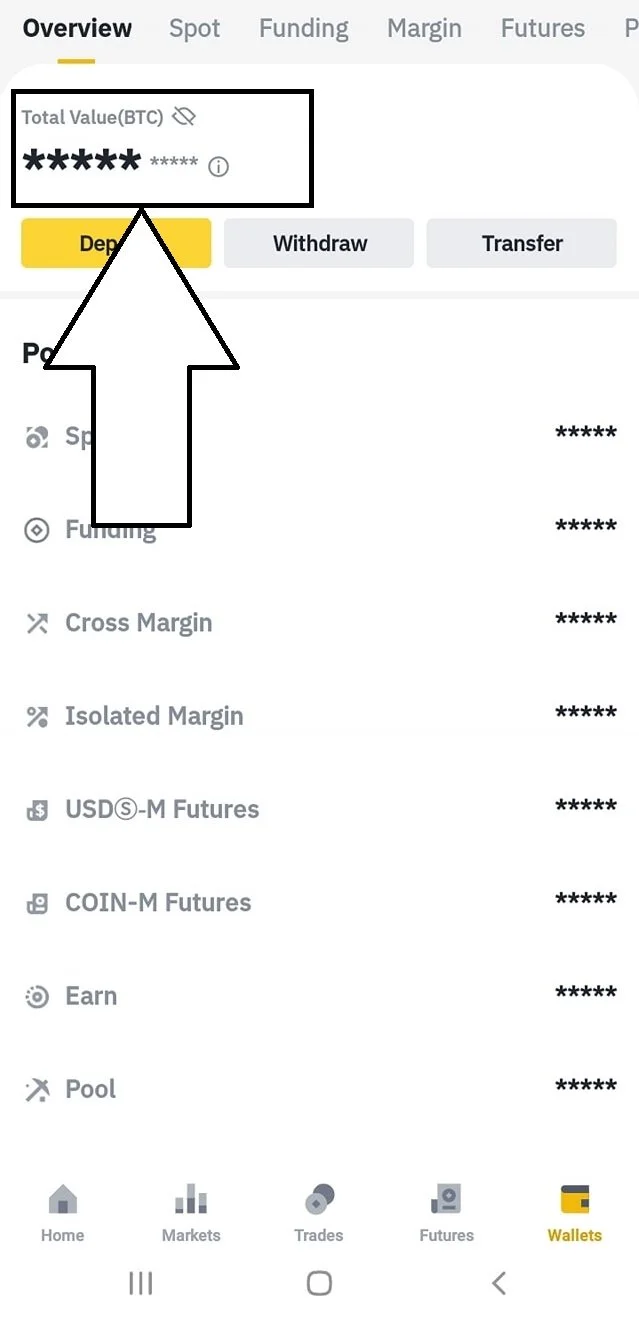
Now that your BTC has been deposited
Click Home and then More inside the Binance app.
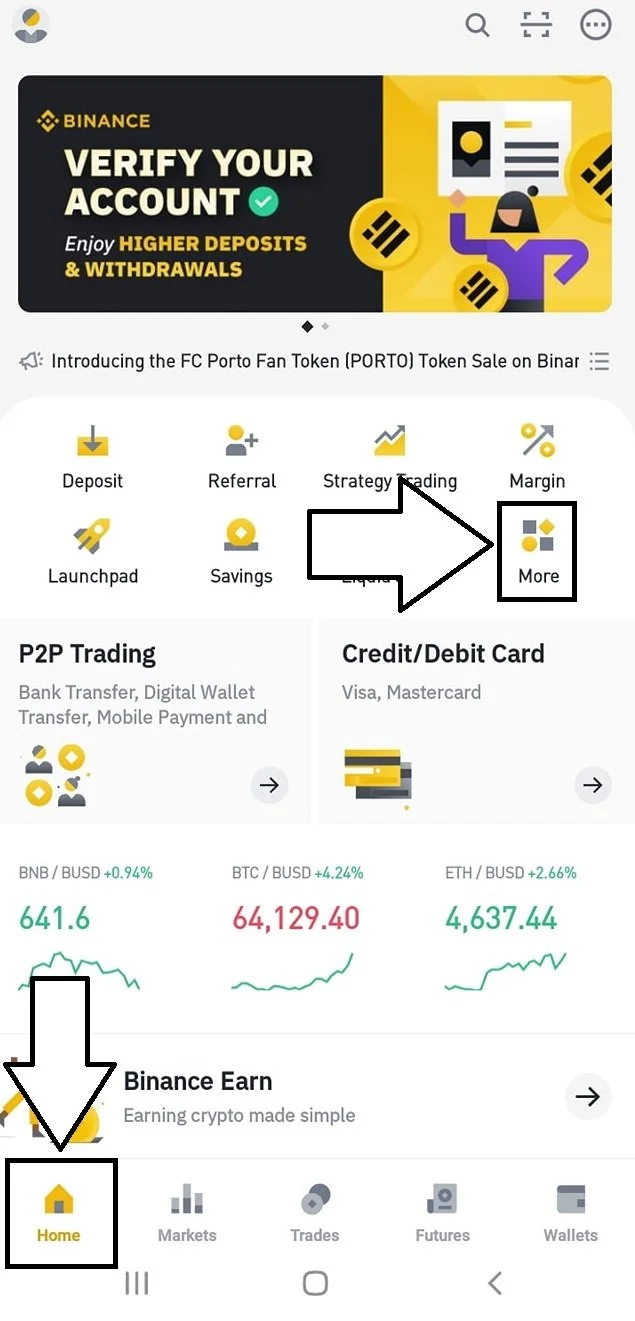

Now click convert
You now need to convert your Bitcoin to BNB. Click MAX to convert the Bitcoin you sent to Binance to BNB. BNB is actually a Binance token. We’ll be sending it to our Trust Wallet.
Go To Your Trust Wallet
Now, open the Trust Wallet app. Ensure you’re on the Wallet tab. If you’re not, click Wallet on the bottom left of your screen.
Now, click Receive. In the search bar, search for BNB. There will be several options available to select, but we only want to select BNB.
On the next screen, you should see a QR code with an address beneath that. That address is your unique address to receive BNB in to your Trust Wallet. Click Copy. Note, no memo is required. This will be important to remember for the following steps.
Open your Binance app. Click Wallets on the bottom right of the screen then search for BNB and select it. Click withdrawal. If prompted to choose a network, select Binance Chain (BEP2).
Now Let’s Withdraw Your BNB to Trust Wallet.
Under address, paste the address you copied from Trust Wallet. The Network should automatically detect for you. In the Memo section, leave it blank. Click Max for the amount and then click withdrawal. Don’t forget to double check your address pasted correctly before completing the withdrawal.
Let’s now wait a few minutes for the BNB to show in our Trust Wallet.
When The BNB Transfer Is Complete
Click Wallet at the bottom left of the screen In your Trust Wallet. Pull the screen down to refresh it. The BNB you transferred from Binance should now display. Click on BNB and then click More. Now, we are going to click on Swap to Smart Chain.
There will be a small fee to make this swap from BNB to Smart Chain. So we can’t covert 100% of our BNB as we need to pay the small fee for the conversion. eg: let’s say you have 2 BNB you want to convert to Smart Chain. In this scenario, we cannot convert all 2 BNB’s as the fee comes out of our BNB. So let’s manually type in 1.99 BNB to see if the conversion will work. If not, we’re going to want to manually type in 1.95 or 1.98 etc until the conversion actually occurs.
If you click Swap, and the next page says you have Insufficient BNB Balance, you will have to click back to the previous page and slightly reduce the amount of BNB and try again. Repeat this process until you see the message Approve. After you approve the Swap, the smart chain balance should now display in your Trust Wallet.
Time to use the PancakeSwap DApp
Now that we’ve converted our BNB to Smart Chain, let’s go in to our Trust Wallet and at the bottom, we’ll click on DApps. Scroll down to the Popular section, and PancakeSwap should be the first option. Let’s click it. Now we’re at the PancakeSwap exchange where we’ll actually be able to swap our Smart Chain for Forage.
We’re going to click on Max to use all of our Smart Chain balance, and we’re going to click on Select a currency. Next, simply type in our token name Forsage, and set the slippage tolerance to 10%. If the slippage tolerance is a different number, we’re going to want to click the Settings icon at the top of the page, and manually enter in 10 then click the X to close the settings page. Now, just approve the transaction. You now own your very own Forage! Congratulations! Keep reading to see how we can check how our investment is doing.
What’s my investment worth?
In the Trust Wallet app, click DApps at the bottom. In the search bar type in Poocoin. The first result should be Poocoin with the url https://poocoin.app. Click it. In the section Enter token name/address, we’re going to type Forage. From here, we can see the Forage chart, and how our investment is doing. Remember to HODL (hold on for dear life).